How to Crawl a Website for SEO on a Mac, Step by Step
- What a Crawl Finds That Nothing Else Does
- Step 1: Install HubSEO Spider
- Step 2: Choose Spider Mode or List Mode
- Step 3: Configure the Crawl
- Step 4: Run It and Watch the Activity Log
- Step 5: Read the Results, Tab by Tab
- Step 6: Export, Fix, Recrawl, Compare
- Crawl Etiquette
- Frequently Asked Questions
Google Search Console tells you which pages it indexed. Lighthouse tells you how one page performs. Neither tells you that 38 pages still link to a URL that has redirected twice since the last redesign, or that the new blog template shipped with a noindex tag. For that you need to crawl the site yourself.
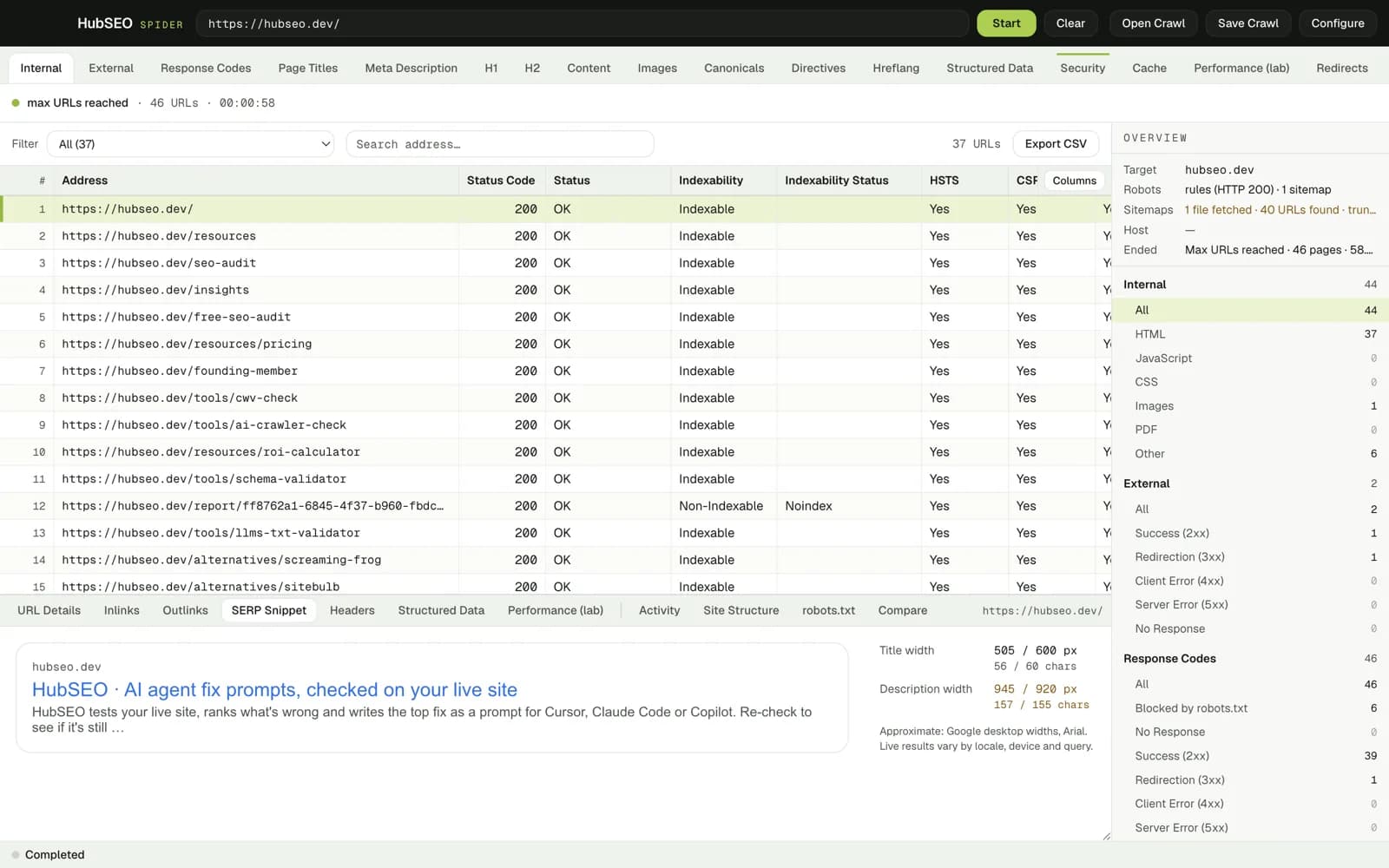
This guide walks through a full SEO crawl on a Mac using HubSEO Spider, a free desktop crawler built for macOS 14 and later. The steps and the reading order apply to any crawler; the screenshots and panel names are Spider's.
What a Crawl Finds That Nothing Else Does
A crawler does what a search engine's fetcher does: start at one URL, collect every link, fetch those, repeat. Because it visits every reachable page, it is the only tool that sees site-wide patterns:
- Internal links pointing at 404s and 5xx errors
- Redirect chains and loops, and links that still point at the old URL
- Pages blocked by robots.txt, noindex or a canonical pointing elsewhere
- Missing, duplicate or over-long titles and meta descriptions across templates
- Pages with no H1, or several
- Orphan pages that exist in the sitemap but are linked from nowhere
- Near-duplicate content across URL variants
- Images without alt text, and structured data that is present on some templates and missing on others
- Security headers that differ between sections of the site
Each of these is invisible from a single-page audit and from Search Console's aggregates.
Step 1: Install HubSEO Spider
Download the disk image for your Mac from the Spider page: 129 MB for Apple silicon, 136 MB for Intel. Apple menu, About This Mac, shows which you have. Drag the app to Applications.
The app is ad-hoc signed and not yet notarised with Apple, so on first launch right-click it in Finder, choose Open, then confirm. After that it opens normally. There is no account and no licence key.
Everything Spider does happens on your Mac. Pages are fetched and rendered locally, crawl files are saved where you choose, and nothing is sent to HubSEO or anyone else.
Step 2: Choose Spider Mode or List Mode
Spider mode starts from one URL and follows internal links. It reads robots.txt and obeys it, and it seeds the queue from any XML sitemaps it finds, so sitemap-only pages are fetched too. This is the mode for a full audit.
List mode crawls exactly the URLs you paste or import, nothing more. Use it to recheck a set of pages after a fix, to audit the top landing pages from Search Console, or to crawl one section of a very large site.
Step 3: Configure the Crawl
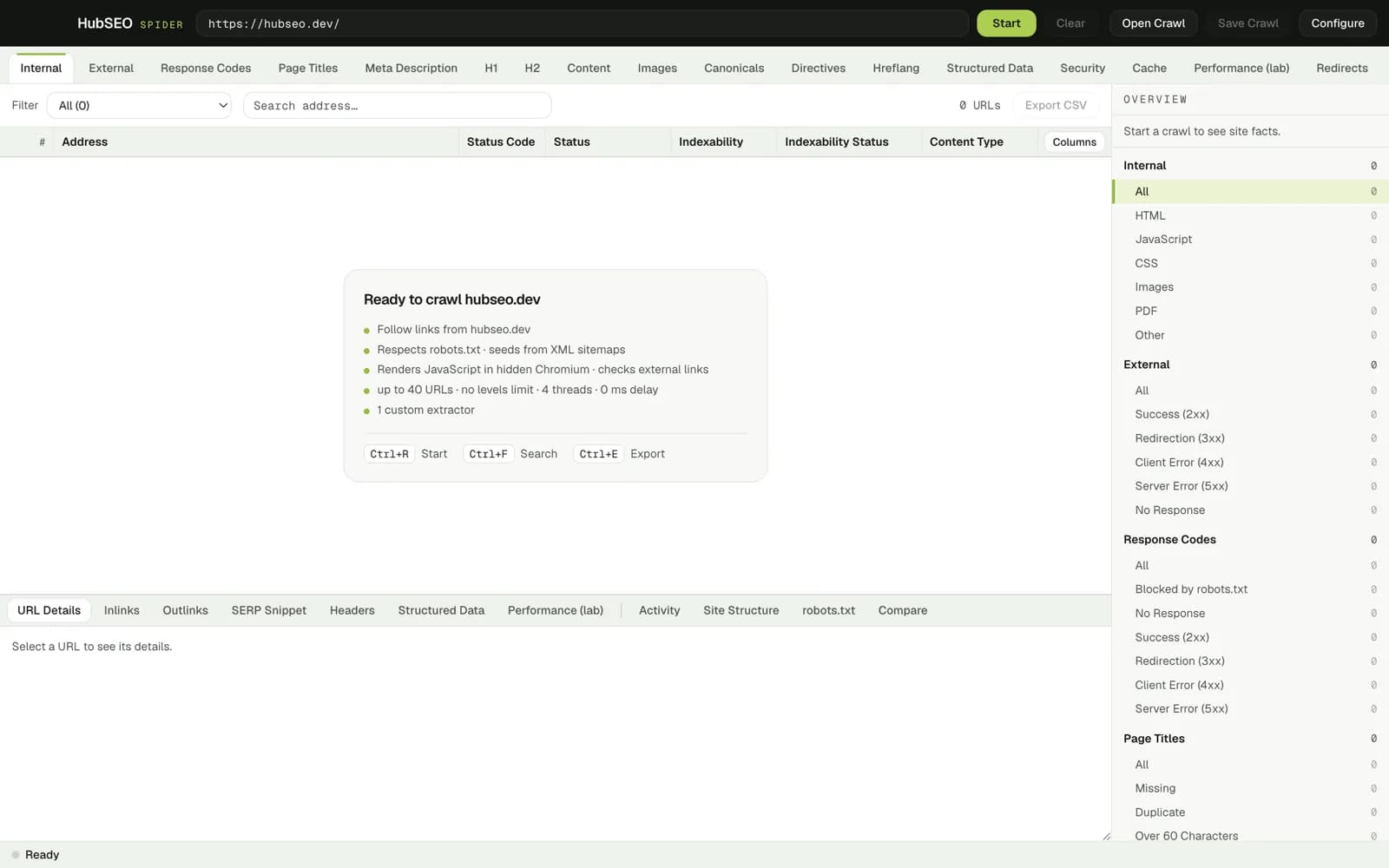
Open Configure before you start. Four settings matter most:
- Threads: how many pages are fetched at once. Start at 2 to 4 for a site you do not host yourself; a small server will notice 10.
- Delay: milliseconds between requests per thread. Add some for shared hosting.
- URL budget: the maximum number of pages to fetch. Set it to a round number above the site's size the first time; the done line will tell you if the budget was reached before the site ran out.
- Depth: how many links from the start URL to follow. Leave it open for a full crawl; cap it to sample a large site.
JavaScript rendering is on by default: each page is loaded in a hidden Chromium so content built by a framework is seen rendered. External links are checked, not just collected, so broken outbound links show up too. Custom extractors let you pull a field of your own from each page, such as the product price or the author byline, into the Custom tab.
Step 4: Run It and Watch the Activity Log
Press Start. The grid fills as pages come back, and the Overview column counts internal and external URLs and the response-code buckets. The Activity panel lists every fetch with its time, status, response time and size, and can be filtered by event type or searched by URL.
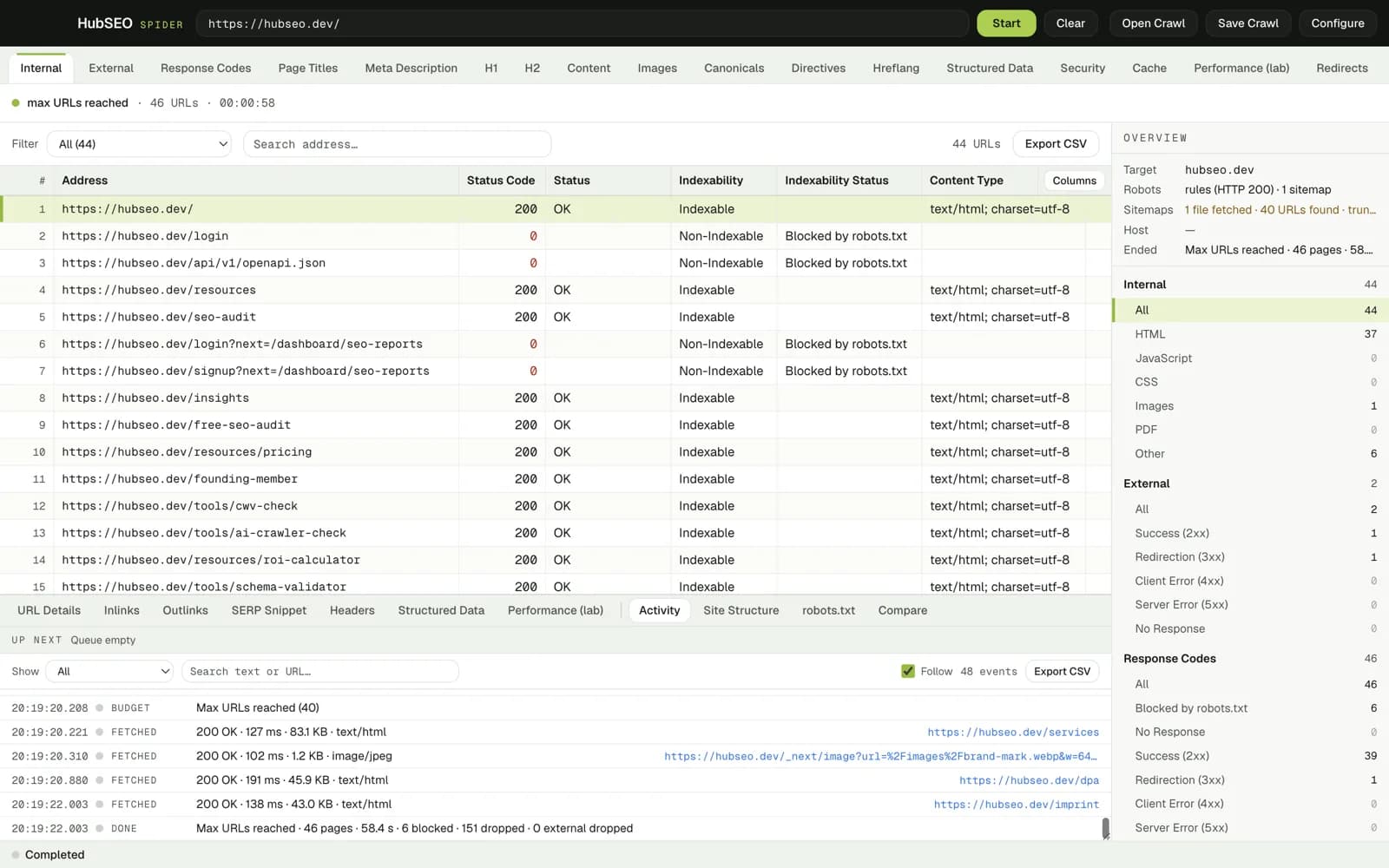
When it finishes, the done line states pages crawled, time taken, and how many URLs were blocked (by robots.txt) or dropped (outside scope or over budget). If the budget was reached, raise it and run again. If blocked is unexpectedly high, open the robots.txt panel; it shows the file exactly as the server returned it.
Save the crawl as soon as it completes. You will want it for the comparison in Step 6.
Step 5: Read the Results, Tab by Tab
Spider sorts everything into 19 filter tabs over one grid. Reading them in this order moves from "pages cannot be reached" to "pages could be better", which is the order of impact.
Response Codes. Filter to 4xx and 5xx. Select each URL and open the Inlinks panel to see every page that links to it; those are the links to fix. Then filter to 3xx.
Redirects. Chains of two or more hops waste crawl time and leak link value; loops break pages outright. Fix the links to point at the final URL, then collapse the chain at the server.
Directives. Look for noindex on pages that should be indexed, especially after a template change, and for nofollow on internal links. One wrong meta tag in a layout file can noindex an entire section.
Canonicals. Every indexable page should canonicalise to itself or to a deliberate master. Watch for canonicals pointing at a redirect, at a 404, or at the HTTP version of the site.
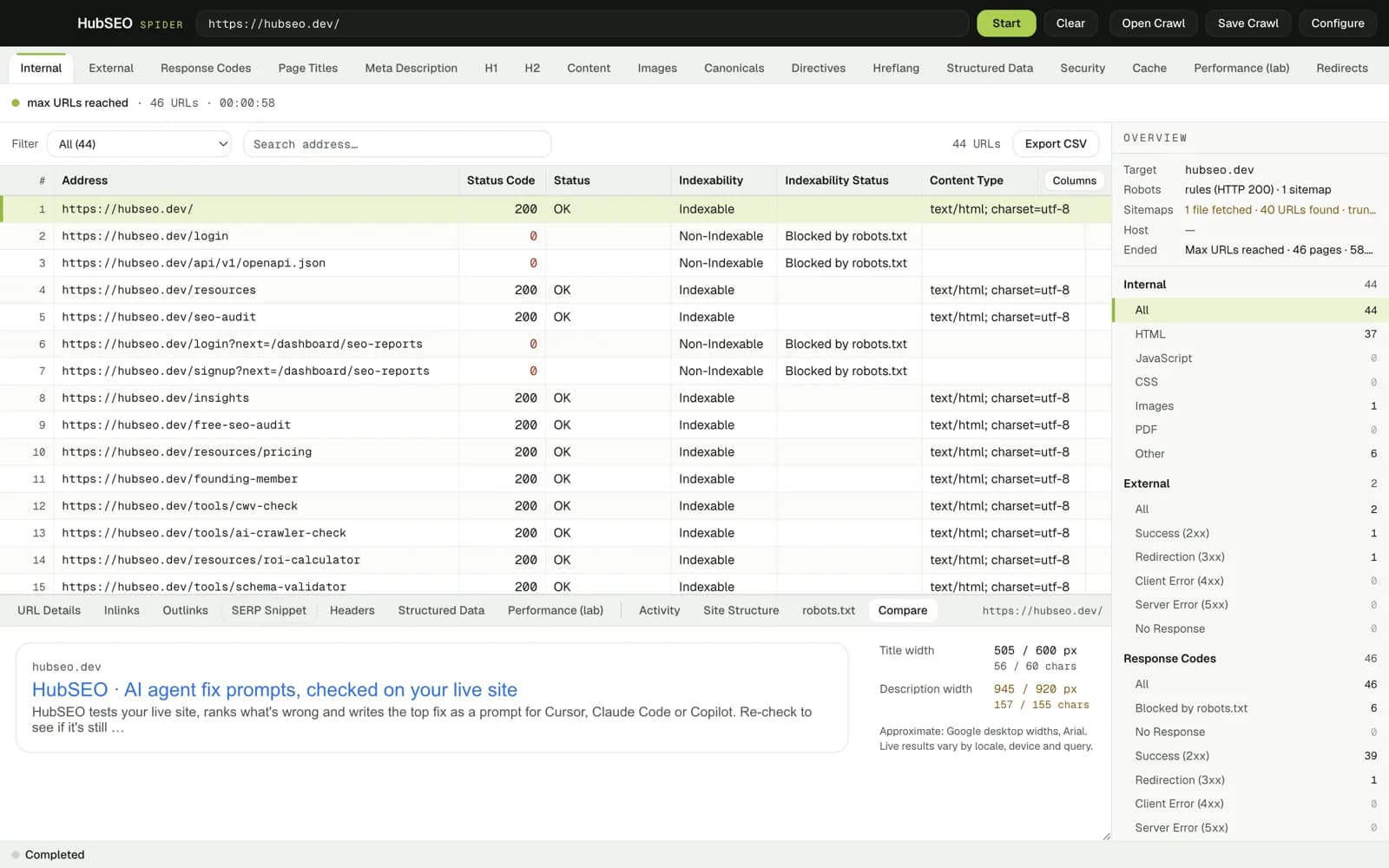
Page Titles and Meta Description. Filter for missing, duplicate, over 60 characters and over 155 characters. Select a URL and open the SERP Snippet panel: it draws the result at Google desktop widths and prints the title's width against the 600 px / 60 character guide and the description's against 920 px / 155. Approximate by design, and labelled as such, but it settles arguments about whether a title will truncate.
H1 and H2. Missing H1s and multiple H1s usually mean a template bug. Fix the template once.
Content. The simhash filter flags near-duplicate pages: tag archives, paginated variants, print versions, tracking-parameter URLs. Decide for each whether to canonicalise, noindex or consolidate.
Images. Missing alt text, and images over a size you choose.
Structured Data. The panel lists detected types per page with the raw JSON-LD and a Copy button. Check that the types you expect (Article, Product, FAQPage, BreadcrumbList) are on every page of that template, not just the one you tested.
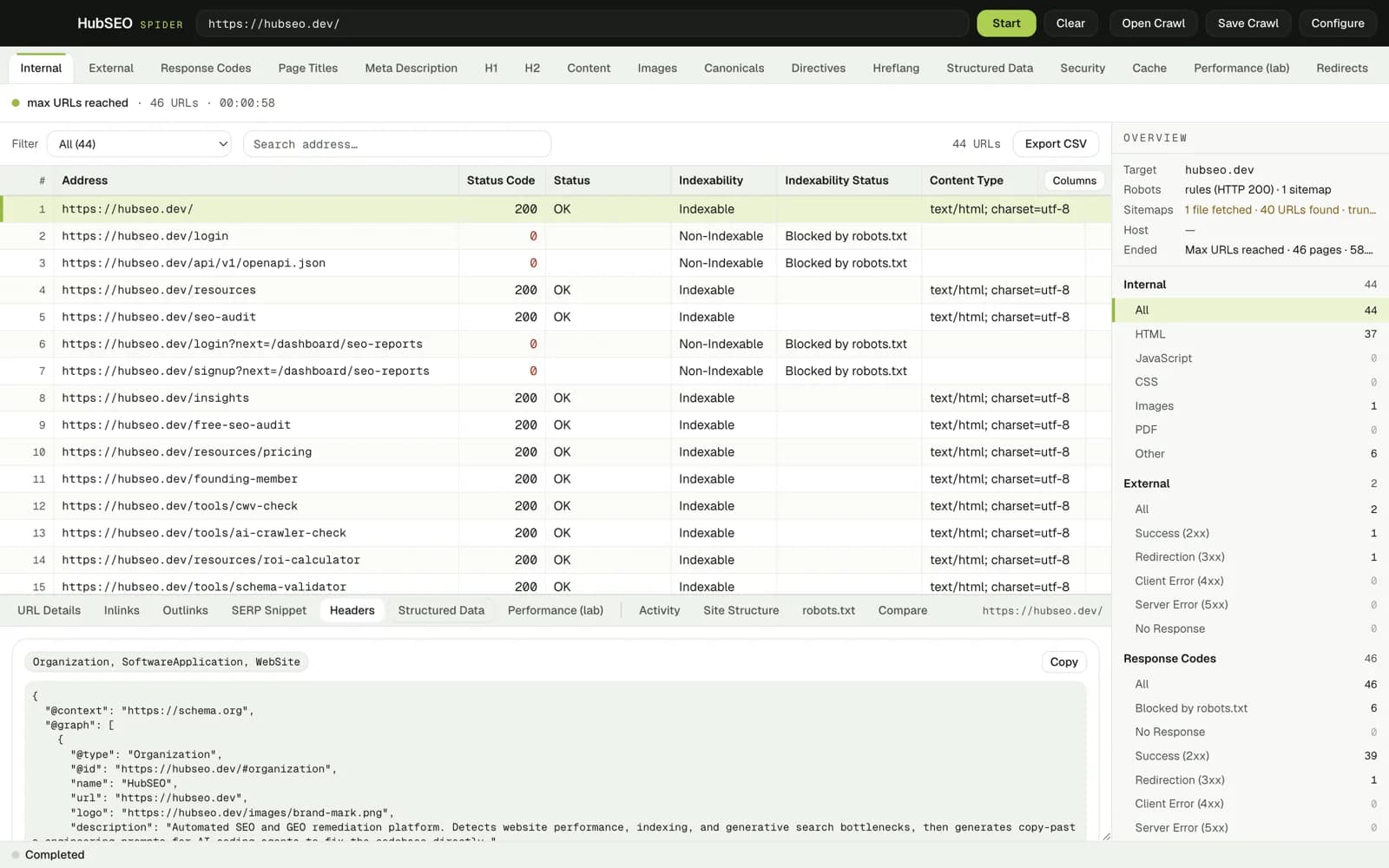
Security. HSTS, CSP and the other headers per URL. Differences between sections usually mean one is served by a different origin or CDN rule.
Sitemap. URLs in the sitemap but not reached by the crawl are orphans; URLs crawled but missing from the sitemap are candidates to add. Both lists come straight from this tab.
Performance. Select any URL for TTFB, DOMContentLoaded, Load, LCP and CLS from a single unthrottled render on your machine, with the good and poor thresholds printed under each figure. This is lab data from one run, and the panel says so. Use it to rank pages for a deeper look, not as a Core Web Vitals score. For the throttled, field-aligned view of one page, run the free Core Web Vitals check or a HubSEO audit on that URL.
Step 6: Export, Fix, Recrawl, Compare
Export CSV from any tab, or everything at once, and hand the lists to whoever owns the templates. If you work with an AI coding agent, the fastest route for the single worst page is to run the HubSEO web audit on it: the audit ranks the findings and writes the top one as a prompt for Cursor, Claude Code or GitHub Copilot.
After the fixes deploy, open the saved crawl, run a fresh one with the same settings, and use the Compare panel to put them side by side. Response codes that moved from 404 to 200, titles that stopped being duplicates, a noindex that disappeared: that is the evidence the release did what it was meant to. Keep the saved crawls; a monthly series is a change log nobody has to write.
Crawl Etiquette
A crawler can make a few hundred requests a minute. On your own infrastructure that is fine. On shared hosting, a client's site or anything you do not operate:
- 01Crawl only sites you own or are authorised to audit.
- 02Leave robots.txt enforcement on. Spider obeys it by default.
- 03Keep threads low and add a delay. Two threads with a delay is slower and almost never a problem.
- 04Set a URL budget and a depth the first time, then widen.
- 05Crawl outside peak hours if the site is busy.
- 06Stop if response times climb in the Activity log. That is the server telling you to slow down.
Nothing here is specific to Spider; it is how any crawler should be run.
Frequently Asked Questions
What does an SEO crawler actually do? It starts from a URL, fetches the page, extracts every link, and repeats until it has visited every reachable page or hit the limits you set. For each URL it records the status code, title, meta description, headings, canonical, directives, links in and out, and in HubSEO Spider's case the rendered content, performance timings and structured data.
Is it legal to crawl a website? Crawling your own site, or one you have permission to audit, is normal practice. Respect robots.txt, keep request rates low, and stop if the server struggles. Crawling a third party's site aggressively or against its terms is not something this guide covers.
How many pages can HubSEO Spider crawl? There is no URL cap in the app. The practical limit is your Mac's memory and the per-crawl budget you set in Configure. For very large sites, crawl by section using list mode or a depth limit.
Why does my crawl find fewer pages than the sitemap lists? The pages exist but are not linked, so the crawler cannot reach them by following links. The Sitemap tab shows URLs that appear in the sitemap but not in the crawl; those are orphan pages and need internal links.
Does a crawl tell me how my pages rank? No. A crawl shows what is on the site and how it is served. Rankings, impressions and clicks come from Google Search Console. Use the crawl to fix what you control and Search Console to see whether it mattered.
What is the difference between a crawl and a Lighthouse audit? A crawl covers every page but measures each one lightly. A Lighthouse audit covers one page in depth, including performance under throttling. HubSEO Spider does the first; the HubSEO web audit at hubseo.dev does the second and turns the top finding into a fix prompt.
Download HubSEO Spider for Mac free and run your first crawl today. If you are still choosing a crawler, the round-up of the best SEO tools for Mac compares the options. When the crawl has found the worst page, run a free SEO audit on that URL to get the fix as a prompt.
KEY TAKEAWAYS
- An SEO crawl fetches every page a search engine could reach and records what it found: status codes, titles, canonicals, directives, links and rendering. It is the only way to see site-wide problems.
- HubSEO Spider runs the crawl on your Mac, renders JavaScript in a hidden Chromium, respects robots.txt and seeds from sitemaps. Free, no URL cap, nothing leaves the machine.
- Read the tabs in this order: Response Codes, Redirects, Directives, Canonicals, Page Titles and Meta Description, Content, Images, Structured Data, Performance.
- Crawl your own site or one you are authorised to audit, keep threads low and add a delay. A crawl should never look like an attack to the server.
- Save every crawl. The Compare panel puts two saved crawls side by side so you can prove a release fixed what it was supposed to fix.