How to Uninstall Apps on Mac Completely (Leftovers Too)
- What the Trash Actually Removes
- Method 1: Finder and Launchpad
- Method 2: Use the App's Own Uninstaller
- Method 3: Find the Leftovers by Hand
- Method 4: Housekeeper, Free and Trash-Only
- When an App Refuses to Go
- What Not to Delete
- Frequently Asked Questions
Most guides on how to uninstall apps on Mac stop at "drag it to the Trash". That removes the icon. It does not remove the gigabytes of caches, the preference files, the login items or the background helper the installer quietly added. A Mac that has been through a few years of trying and abandoning software can easily carry several gigabytes of this.
This guide covers the three manual routes, the folders where leftovers hide, and a free tool from the HubSEO team called Housekeeper that lists an app's files before anything moves and never deletes, only sends to the Trash.
What the Trash Actually Removes
A Mac application is a folder dressed up as a file: the .app bundle in /Applications. When you drag it to the Trash, that bundle is what goes. Everything the app wrote while it ran stays where it was written:
- Application Support: databases, plug-ins, downloaded assets, sometimes the bulk of what the app stored
- Caches: rebuildable files that can run to gigabytes for browsers, design tools and anything with a media library
- Preferences: .plist files with your settings
- Containers and Group Containers: sandboxed apps keep almost everything here
- LaunchAgents and LaunchDaemons: scripts that start a helper every time you log in, even after the app is gone
- Saved Application State: window positions and restore data
- Logs: crash reports and diagnostics
None of this is dangerous. It is simply untidy, and launch agents for apps that no longer exist are the one category that can waste CPU on every boot.
Method 1: Finder and Launchpad
The quickest route, and fine for small apps that never asked for a password.
- 01Quit the app. Check the menu bar for a helper icon and quit that too.
- 02Open Finder, choose Applications, and drag the app to the Trash. Or select it and press Command-Delete.
- 03Enter your password if macOS asks; it will for apps installed by another user or with an admin installer.
- 04Empty the Trash when you are sure.
Apps from the Mac App Store can also be removed from Launchpad, where it is available: click and hold until the icons jiggle, then click the X. Apps installed from outside the App Store show no X and need the Finder route.
What this leaves behind is everything in the list above. For a small utility that is a few kilobytes of preferences. For a video editor, a game launcher or a creative suite it can be gigabytes.
Method 2: Use the App's Own Uninstaller
Some software installs more than an app bundle: kernel or system extensions, privileged helpers, virtual network interfaces, fonts, browser plug-ins. Removing the bundle alone leaves those running. Check for a vendor uninstaller before anything else if the app is from:
- Adobe (Creative Cloud has its own uninstaller per app)
- Microsoft (Office, Teams, OneDrive)
- Parallels, VMware and other virtualisation tools
- VPN clients and security software (Sophos, Norton, McAfee and similar)
- Audio and MIDI drivers, printer and scanner packages
- Anything that asked for System Settings permissions beyond the usual
Look for an Uninstall item inside the app's folder in Applications, in the original disk image, or on the vendor's support site. Run that first, then clean up the remaining user-level leftovers with Method 3 or 4.
Method 3: Find the Leftovers by Hand
If you prefer to see exactly what goes, your user Library is where almost all of it lives. In Finder, hold Option and open the Go menu; Library appears. Inside, check these folders for anything carrying the app's name or the developer's reverse-domain identifier (com.vendor.appname):
- Application Support
- Caches
- Preferences
- Containers
- Group Containers
- LaunchAgents
- Logs
- Saved Application State
- WebKit
Then do the same at the top-level /Library for LaunchAgents, LaunchDaemons, Application Support and PrivilegedHelperTools. These are the system-wide locations installers use when they asked for your password.
Three rules keep this safe:
- 01Match on the app or vendor name, not on a guess. Many folders share vendor identifiers across several apps.
- 02Move items to the Trash rather than deleting them. If something breaks you can Put Back.
- 03Restart before you empty the Trash. A launch agent that was still loaded will complain on restart, which tells you what it belonged to.
Doing this for one app takes a few minutes. Doing it for the twenty apps you tried in the past two years is where a tool earns its place.
Method 4: Housekeeper, Free and Trash-Only
Housekeeper is a free macOS app from the HubSEO team. Its Applications module does the Library search above for you, with a pre-flight you can read before anything moves.
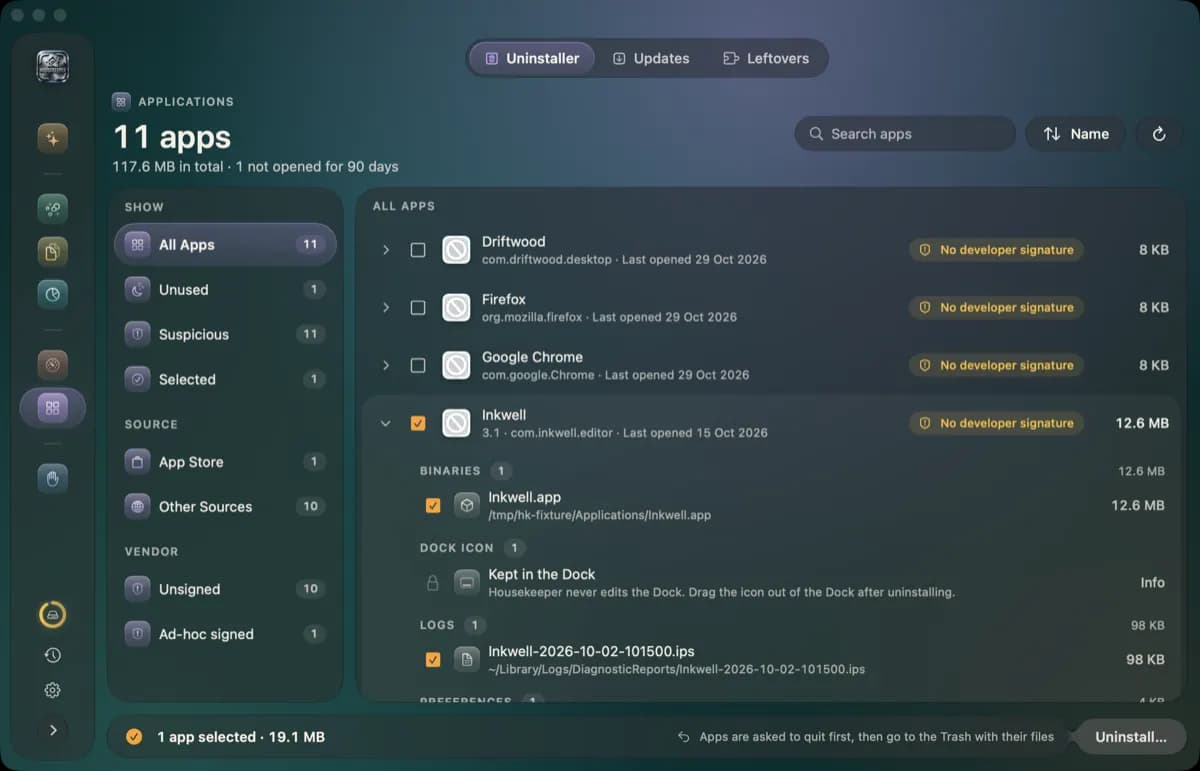
How it works:
- 01Open Housekeeper and choose Applications. Filters show unused apps, apps with no developer signature, App Store apps and everything else.
- 02Pick an app. Housekeeper lists its binary, logs, preferences, caches and support files, with the signature state shown alongside. Untick anything you want to keep.
- 03Confirm. The app is asked to quit first, then it and its files go to the Trash.
- 04Open History to see the move grouped by day and module, with Put Back next to it.
The one rule that runs through the whole app: scans are read-only, every removal goes to the Trash, and there is no hard delete anywhere. Nothing is removed from disk until you empty the Trash in Finder yourself.
A Leftovers tab handles the apps you already removed by dragging. It finds the orphaned support folders and launch agents and offers the same Trash-with-Undo treatment.
Release facts, so you know what you are downloading: version 0.1.0 (build 148), an 11 MB disk image, macOS 14 or later on Apple silicon and Intel. The app is not yet notarised with Apple, so on first launch macOS asks you to allow it under System Settings, Privacy & Security. Full Disk Access is optional; without it Housekeeper scans what your account can read and says what it skipped. There is no account, no in-app purchase, and nothing is sent to HubSEO or anyone else.
Housekeeper is not a replacement for a vendor uninstaller when one exists. Run the vendor's tool for Adobe, Microsoft, Parallels or security software, then use Housekeeper's Leftovers tab for what remains.
When an App Refuses to Go
"The item can't be moved to the Trash because it's open." Quit the app. If it will not quit, press Option-Command-Escape, choose it, and Force Quit. Check for a menu-bar helper and quit that too. Housekeeper asks the app to quit before moving it, which handles most cases.
It asks for a password every time. The app was installed with admin rights or by another account. Enter the password; this is expected.
The app comes back after a restart. A launch agent or daemon is reinstalling or relaunching a helper. Look in both LaunchAgents folders and /Library/LaunchDaemons for the vendor's identifier, move the file to the Trash, and restart.
The app lives under /System/Applications. It is part of macOS and protected by System Integrity Protection. It cannot be removed and should not be.
What Not to Delete
- Anything in /System or /Library/Apple
- Apple's own apps (Safari, Mail, Messages, Photos, Music and the rest)
- Folders in Application Support or Containers for apps you still use, even if the name looks unfamiliar; many apps use a vendor identifier rather than the product name
- Keychain files, Mail data, Photos libraries and iCloud Drive caches
- Anything a cleaner tool wants to delete permanently rather than move to the Trash
If a tool offers to "deep clean" the system folders with a single button, be cautious. Housekeeper deliberately cannot touch protected folders and shows them as skipped rather than guessing.
Frequently Asked Questions
Does dragging an app to the Trash uninstall it completely? No. It removes the application bundle from the Applications folder. Preferences, caches, support data, saved state and any launch agents the app installed remain in your Library folders until you remove them separately.
Where are app leftovers stored on a Mac? Mostly inside your user Library: Application Support, Caches, Preferences, Containers, Group Containers, LaunchAgents, Logs and Saved Application State. Some installers also write to the system-wide /Library, particularly LaunchDaemons and PrivilegedHelperTools.
Why can't I delete an app on my Mac? Usually because it is still running, including a background helper. Quit it or force quit it first. If the app is part of macOS (Safari, Mail, Photos), System Integrity Protection prevents removal entirely.
Is Housekeeper safe to use for uninstalling apps? It only moves files to the Trash. Every removal is listed in History with Put Back, and nothing is deleted from disk until you empty the Trash in Finder yourself. Scans are read-only.
Do I need Full Disk Access to uninstall apps with Housekeeper? No. Without it Housekeeper scans what your account can already read and tells you which folders it skipped. Granting it lets the uninstaller and Space Lens cover the whole disk.
Can I get an app back after uninstalling it? If it went to the Trash, yes: open the Trash and choose Put Back, or use the Put Back button in Housekeeper's History. Once the Trash is emptied you will need to reinstall from the App Store or the developer's site.
If you want the Library search done for you, with every file listed first and the Trash as the only destination, download Housekeeper for Mac free. If you are here because your disk is full rather than cluttered, the companion guide on what System Data is and how to clear it covers the bigger wins. And if your SEO audit needs the same evidence-first treatment, run a free SEO audit on your URL.
KEY TAKEAWAYS
- Moving an app from Applications to the Trash removes the bundle only. Its support files, caches, preferences and launch agents stay in your Library folders.
- Leftovers live in a handful of predictable places: Application Support, Caches, Preferences, Containers, Group Containers, LaunchAgents and Saved Application State.
- Apps that shipped with their own uninstaller (Adobe, Microsoft, Parallels, many VPNs) should be removed with it, because they install background helpers a Finder delete cannot reach.
- Housekeeper lists every file an app owns before anything moves, asks the app to quit, and sends the lot to the Trash with Undo and a History log. It is free and nothing leaves your Mac.
- Never remove macOS's own apps or anything under /System. System Integrity Protection blocks it for a reason.