What Is System Data on Mac and How to Clear It Safely
- What System Data Actually Contains
- Step 1: Measure Before You Delete
- Step 2: The Three Safe Wins
- Step 3: Clear the Big Named Items
- Step 4: Caches, Logs and Leftovers
- Step 5: Keep It Down
- What Not to Touch
- Frequently Asked Questions
Open System Settings, choose General, then Storage, and there it is: a grey System Data bar taking 40, 80, sometimes 150 GB, with no button to clear it. Searches for what System Data on Mac is and how to clear it are among the most common Mac storage questions, and most answers either recommend a paid cleaner or a Terminal command to delete folders by name.
This guide does neither. It explains what the category holds, how to measure it, which parts are safe to remove, and how to do it with the Trash as the only destination. The free tool we use for the measuring and moving is Housekeeper, built by the HubSEO team. Any step here can also be done by hand in Finder.
What System Data Actually Contains
The Storage screen sorts files into named categories it can recognise: Applications, Documents, Photos, Mail, Messages, Music and so on. Anything it cannot place lands in System Data. On a typical Mac that includes:
- App caches in your user Library, especially browsers, Slack, Spotify, design and video tools
- Logs and diagnostic reports, which macOS and apps write constantly
- Time Machine local snapshots, hourly copies kept on the internal disk when the backup drive is not connected
- iPhone and iPad backups made by Finder, which can run to tens of gigabytes each
- Developer files: Xcode derived data, archives, device support files and iOS simulators
- Container and virtual machine images: Docker, Parallels, UTM and similar keep one very large file each
- Mail attachments and downloads that Mail has already indexed
- Application Support data for apps that are still installed and working
- Swap and sleep images, which the system manages itself
The important point is that this is a mixed bag. Some of it is rebuildable junk. Some of it is your data under another name. Clearing System Data well means telling the two apart, not deleting the category wholesale.
Step 1: Measure Before You Delete
Storage's own breakdown stops at the category. To see the folders behind the number you need a size map. In Finder you can select folders inside your Library and press Command-I one at a time, which works but is slow.
Housekeeper's Space Lens draws each folder as a sphere sized by what it holds, starting from your home folder or the whole disk.
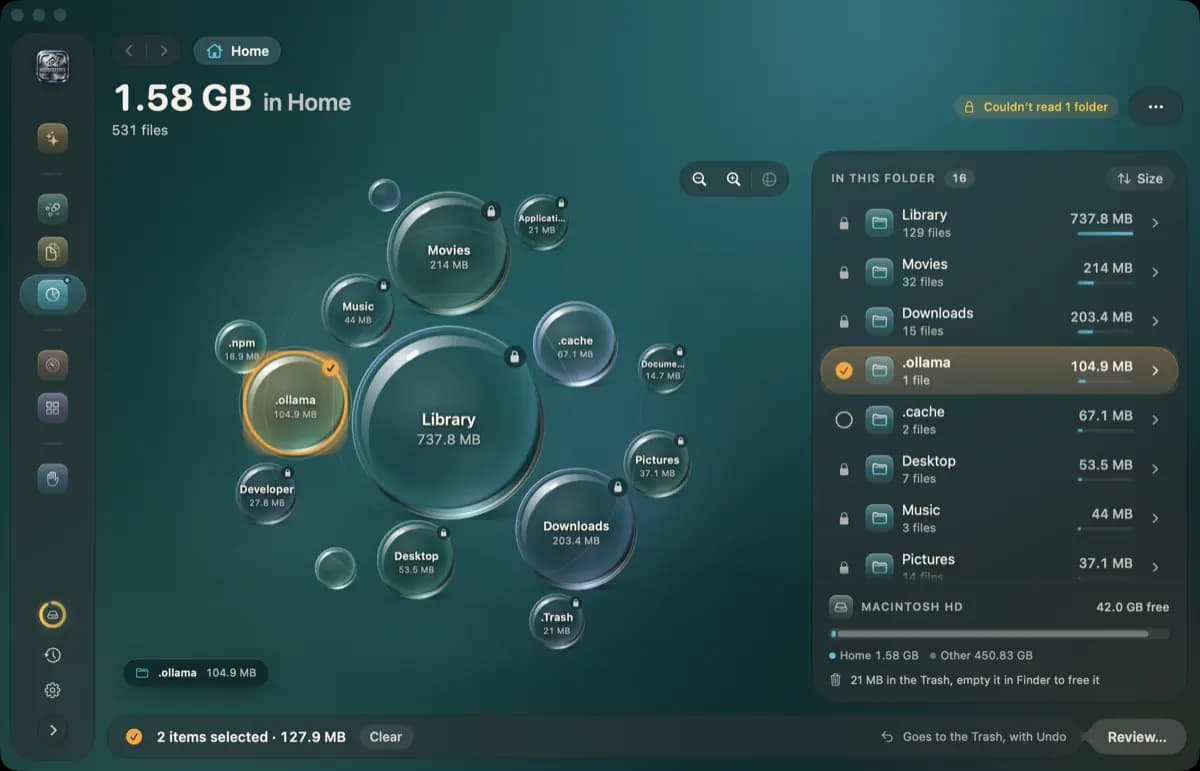
Click a sphere to select it, double-click to fly in, and read the folder sizes and file counts in the side list. Protected folders are shown as skipped rather than guessed, so the figures you see are measured, not estimated. Two minutes here usually names the culprit: a 60 GB MobileSync backup folder, a 25 GB DerivedData folder, a 40 GB Docker disk image.
Without Full Disk Access, Space Lens scans what your account can read and says what it skipped. Grant it in System Settings if you want the whole disk mapped.
Step 2: The Three Safe Wins
Do these first. They cost nothing, risk nothing and often recover more than everything else combined.
Restart the Mac. Swap, temporary files and some caches are cleared on restart, and macOS uses the moment to purge local snapshots and caches it was holding. Check Storage again a few minutes after it comes back.
Empty the Trash. Files you have already deleted still count until the Trash is emptied. If you use Housekeeper, its History screen has an Open Trash button so you can check what is there first.
Remove old device backups. Open Finder, select your iPhone or iPad in the sidebar, choose Manage Backups, and delete backups for devices you no longer own or that are already backed up to iCloud. These are frequently the single largest item in System Data.
Step 3: Clear the Big Named Items
Each of these is a known folder with a known purpose. Remove them when you can name the item and know it is not current data.
Time Machine local snapshots. If your backup disk has been disconnected for a while, local snapshots pile up on the internal drive. Connect the backup disk and let Time Machine run; it thins snapshots automatically. macOS also removes them itself when free space runs low, so this is rarely something to force.
Xcode. The DerivedData, Archives and iOS DeviceSupport folders under Library, Developer, Xcode regenerate as needed. Simulators can be removed from Xcode's Settings under Platforms. Developers routinely recover 20 to 50 GB here.
Container and virtual machine images. Docker Desktop keeps one Docker.raw file that only grows; use its own Clean / Purge data option or prune unused images from the Docker side rather than deleting the file. Parallels and UTM virtual disks are your virtual machines; shrink them from inside the app, do not delete them.
Mail downloads. Mail keeps copies of attachments you have opened. In Mail's Settings under Accounts you can set attachments to download only when needed, and the Mail Downloads folder in your Library can be cleared; attachments remain on the server.
Old installers and disk images. Downloads folders collect .dmg and .pkg files that have done their job. Space Lens makes them easy to spot by size.
Step 4: Caches, Logs and Leftovers
This is where cleaner apps earn their keep, and where they can do damage. Caches and logs rebuild themselves and are safe to remove. Leftovers from apps you already uninstalled are safe to remove. Application Support folders for apps you still use are not.
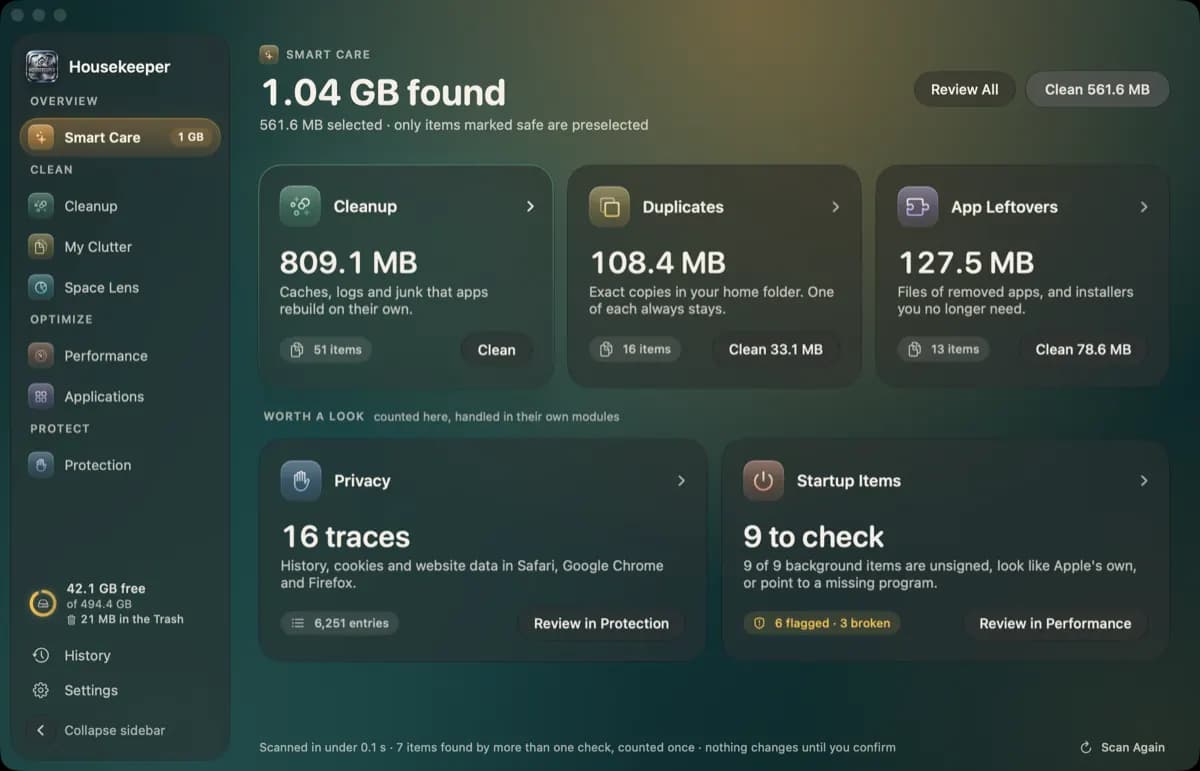
Housekeeper's Smart Care runs the cleaners together and totals what each found: caches, logs and junk that apps rebuild on their own, exact duplicate files (one of each always stays) and app leftovers from software you already removed. Only items marked safe are preselected, and nothing moves until you confirm.
Doing it by hand: open your user Library (hold Option, choose Go in Finder), open Caches, sort by size, and move the largest app cache folders to the Trash. Expect those apps to start slightly slower once. Logs can be treated the same way. For leftovers, our guide on how to uninstall apps on Mac completely lists every folder they hide in.
Whichever route you take, use the Trash. A restart will tell you if something still needed a file; Put Back fixes it in a click. Permanent deletion offers no such correction.
Step 5: Keep It Down
System Data grows back because the things that fill it keep running. Three habits keep it in check:
- 01Keep the Time Machine disk connected or back up to a network destination, so local snapshots are thinned on schedule.
- 02Review device backups each time you upgrade a phone.
- 03Run a Smart Care scan monthly. Housekeeper runs only while its window or menu-bar panel is open, with no daemon in the background, so it costs nothing between scans.
The menu-bar panel shows free disk space alongside CPU, memory and battery, with a Clean tab that previews safe junk before you act. It is a quick way to notice when the number starts creeping again.
What Not to Touch
- Anything under /System, /Library/Apple or /private/var that you did not put there
- Application Support and Containers for apps you still use, even when the folder name is a vendor identifier you do not recognise
- Photos libraries, Mail data, Keychains and iCloud Drive caches
- Virtual machine disks you still boot
- Any folder a tool wants to delete permanently with one button
Housekeeper cannot reach protected folders and shows them as skipped. That is deliberate. Release facts: version 0.1.0 (build 148), 11 MB download, macOS 14 or later on Apple silicon and Intel. Not yet notarised, so macOS asks you to allow it under Privacy & Security on first launch. No account, no purchase, and nothing is sent anywhere.
Frequently Asked Questions
What is System Data on a Mac? It is the catch-all category on the Storage screen (System Settings, General, Storage) for files macOS cannot assign to Apps, Documents, Photos, Mail or another named group: caches, logs, local Time Machine snapshots, device backups, virtual machine and container images, developer files and the parts of your Library that belong to no single app.
Why is System Data so large? Usually one or two items dominate: local Time Machine snapshots waiting for the backup disk, iPhone or iPad backups, Xcode derived data and simulators, a container or virtual machine disk image, or a browser and creative app cache that has grown for years. Measuring the Library folder shows which.
Is it safe to clear System Data? Parts of it, yes. Caches and logs rebuild themselves, old device backups and snapshots can go once you have a current backup, and derived data regenerates on the next build. The risk comes from deleting support files for apps you still use. Move items to the Trash rather than deleting them, and restart before emptying.
Does restarting reduce System Data? Often, yes. A restart clears swap and temporary files and lets macOS purge local snapshots and caches it was holding. It is the first thing to try and takes a minute.
Can Housekeeper clear System Data? It can show you what is taking the space (Space Lens) and move the safe parts to the Trash (Smart Care and Cleanup). It cannot and will not delete anything permanently; nothing leaves your disk until you empty the Trash in Finder yourself.
Why does System Data not shrink after I delete files? Deleted files sit in the Trash until it is emptied, and local Time Machine snapshots keep copies of removed files until macOS thins them. Empty the Trash, restart, and give the Storage screen a few minutes to recalculate.
Measure first, move to the Trash second, empty when you are sure. Download Housekeeper for Mac free to see the folders behind your System Data number, or read how to uninstall apps on Mac completely for the leftovers side of the problem. For the same measured-not-guessed approach to your website, run a free SEO audit on your URL.
KEY TAKEAWAYS
- System Data is the bucket macOS uses for everything the Storage screen cannot assign to Apps, Documents, Photos or another named category. It is not one thing and it is not all junk.
- The usual heavy items are app caches, Time Machine local snapshots, old iPhone and iPad backups, Xcode derived data and simulators, container images, Mail downloads and logs.
- Restarting, emptying the Trash and removing old device backups are the three safest wins and often recover the most space.
- Never delete from Application Support, Containers or the system Library by guesswork. Measure first, then remove items you can name.
- Housekeeper's Space Lens draws your folders by size so the large ones are obvious, and everything you tick goes to the Trash with Undo. It is free and nothing leaves your Mac.